

Guide
Getting Started
Everything you need to get WordCast Live up and running.
What is WordCast Live?
WordCast Live is a Windows desktop application built for church presentation teams. It listens to the speaker in real time, automatically detects Bible references as they are spoken, and lets you push verses, song lyrics, and media to a projector or live stream output — all from one operator screen.
Unlike traditional presentation software, WordCast Live does not require you to pre-build every slide in advance. You can still prepare a full service in the Lyrics and Scriptures libraries ahead of time, but the AI-assisted listening means a pastor can go off script and the right verse still appears on screen within seconds.
System Requirements
- OS: Windows 10 or 11 (64-bit)
- RAM: 8 GB minimum, 16 GB recommended
- Display: 1 primary monitor (operator) + 1 external display or projector output
- Internet: Required for first-time license activation, transcription, and AI-assisted detection. A short connection loss will not interrupt local playback.
- Microphone: Any standard USB or built-in microphone for live listening features
Installing WordCast Live
- 1Download the installer from your dashboard.
- 2Run
WordCast-Live-Setup-<version>.exeand follow the installer prompts. - 3On first launch you'll see a popup asking you to Sign In to activate your license, or Skip Now to continue without an account.
- 4If you sign in, this opens directly to Settings → Account, where you can authenticate or enter a license key.
- 5If you skip, the app runs in free mode. You can sign in at any time from Settings → Account.
Your First Sunday Setup
- 1Connect your projector or second display before opening the app.
- 2Go to Settings → Screen to choose your projector output and confirm Projector Output is enabled.
- 3Use the bottom panel tabs — Scriptures, Lyrics, Media, Theme — to prepare your content.
- 4To add songs, go to the Lyrics tab and use Add Song, or import from Online Resources / AI Lyrics Finder (Pro).
- 5When ready, click Start Mic in the toolbar to begin listening, and use GO LIVE or double-click any item to push to the projector.
Understanding the Interface
WordCast Live's main screen is built around one continuous toolbar at the top and three working areas below it.
| Area | Purpose |
|---|---|
| Toolbar | Start Mic, NDI status, Looks selector, history, settings, Add Song, F2B, Output toggle, GO LIVE |
| Live Transcript (left) | Real-time text of everything spoken, with detected Bible references highlighted |
| Preview / Live Screen (center-right) | Preview pane shows what's queued; Live Screen mirrors exactly what's on the projector |
| Match Bible Verse (right) | Live matches appear here as you speak, each with a Push to Live option |
| Bottom tabs | Scriptures, Lyrics, Media, and Theme — your full content libraries |
Single-clicking a verse or slide loads it into Preview. Double-clicking — or clicking Push Live — sends it straight to the Live Screen and projector.
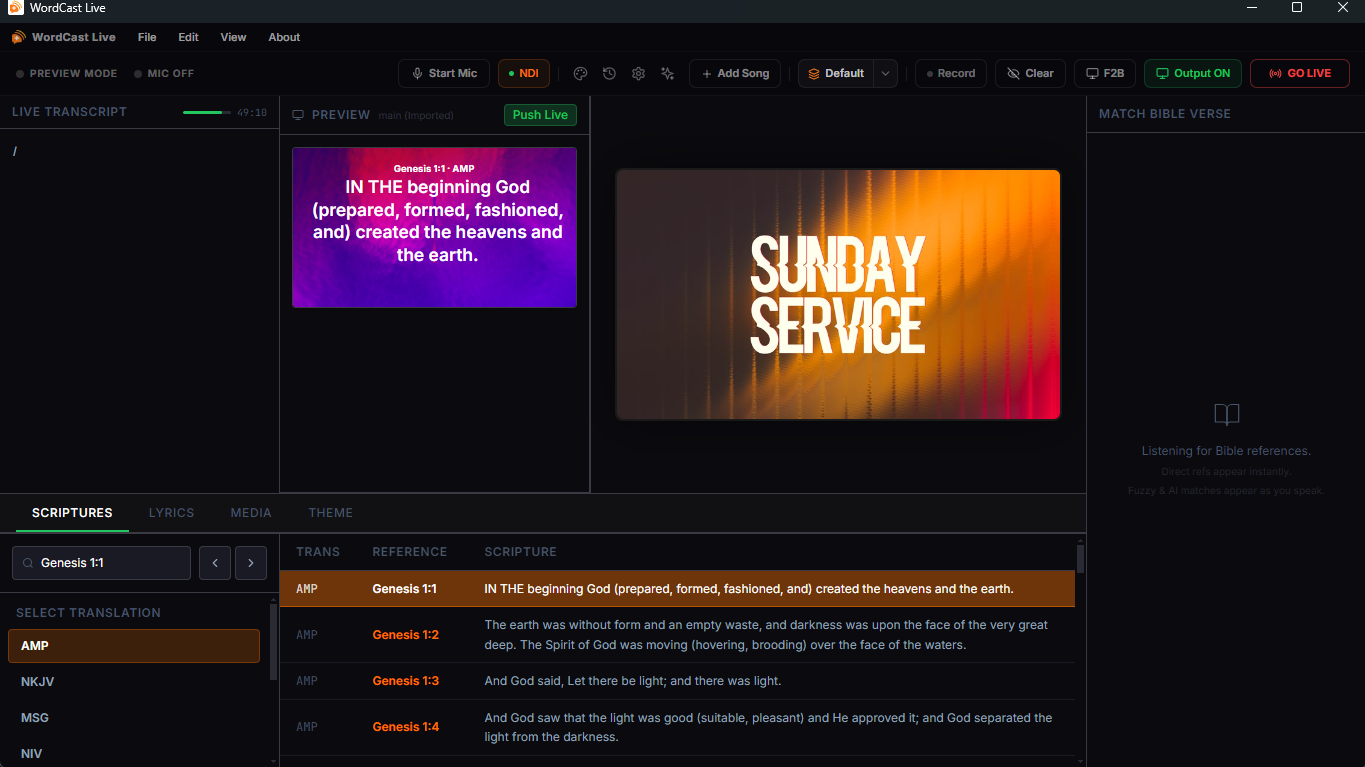
Main window overview